Windows Get started
Docker isn’t native on Windows, here we will show how to run Docker on Windows.
Requirements
PowerShell
First of all, install the PowerShell. The PowerShell is a new cross-platforme shell develope by Windows. Install it from:
-
or
Microsoft Store
Docker Desktop
To use Docker on windows, install Docker Desktop:

Download Docker Desktop installer
Execute the installer and accept “install required Windows components for WSL”” when it will be ask:
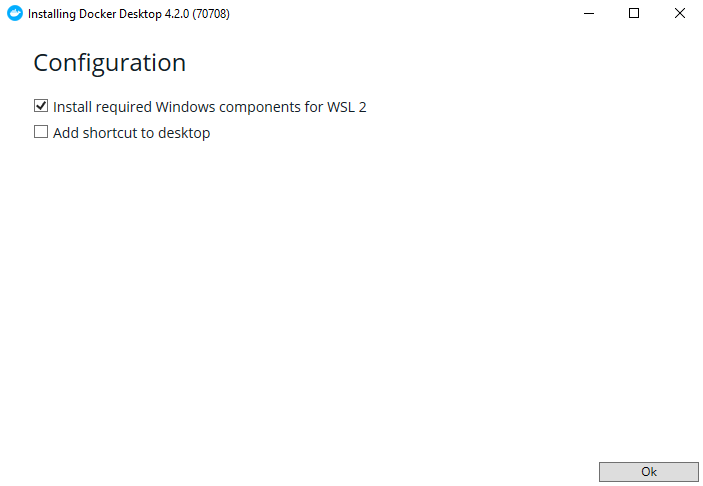
Docker Desktop installer
Note
Windows Subsystem for Linus (WLS) run a GNU/Linux environment on Windows (More information ? )
WSL
Depending on your system, Docker Desktop will ask to install/update WSL. In some cases the following command is enough otherwise following this documentation.
# Restart computer after
wsl --install
Running Docker
At this point, docker image should be runnable on the computer
Docker CLI basics
The main commands for using docker:
docker ps # Print the running conteiner
docker images # Print the image present on your laptop
docker run <image> # Run a image (start conteiner)
docker stop <conteiner_id_or_name> # Stop a conteiner
docker rm <conteiner_id_or_name> # remove a conteiner
Test environment
First, “ENGINE RUNNING”” should appear when your mousse passe over the Docker logo down left of the Docker Desktop application. If docker engine doesn’t running, it’s probably a problem with wsl.

Docker Desktop
Docker Engine are running, let’s try the command above.
docker run -d -p 80:80 docker/getting-started
The docker run command start conteiner.
-d option permit to **D**etach the process of your shell (backrund running the conteiner).
-p 80:80 bind the port 80 of ther conteiner on the port 80 of your laptop (usefull to run web server).
docker/getting-started is the name of the image which will be runing. Docker will search it on your laptop or download it if not present.
That’s works, let’s remove the conteiner:
# Copy ID or name
docker ps
# Delete the conteiner
docker rm <conteiner_id_or_name>
PIE image
Finaly, how well run the EPITA PIE image ? First create a folder on your laptop: (exemple with PowerShell)
mkdir ${HOME}/my_awersome_project
Now, the command to run PIE image:
docker run -it --name docker-pie --rm -w /root/home -e HOME=/root/home -v ${HOME}\my_awersome_project:/root/home registry.cri.epita.fr/cri/infrastructure/nixpie/nixos-pie:latest sh
Let’s understand it:
docker run, you already know
-it, interactive mode (permit to have interaction with the image)
–name, name for the conteiner, here docker-pie
–rm, auto-remove the conteiner when we close it
-w, set working directory inside the conteiner, here /root/home
-e, set environement variable inside the conteiner, here $HOME=”/root/home”
-v, bind a directory of your laptop to one on the conteiner (a kind of volume), here we bind the previously created directory on “/home/root”
registry.cri.epita.fr/cri/infrastructure/nixpie/nixos-pie:latest, the latest version of the PIE image
sh, programme to run interactively
The image is heavy, it took time to download it. Don’t worry we only download once, when a new version are available. After a few moments of downloading, your conteiner should be running, congratulation !
VsCode x Docker
Optimization
Maybe since you follow this tutorial your Laptop is slower than before, even when with no runnning conteiner. That’s because the Docker Engine are always running and so WSL too. Let’s have a look to the Tasks manager.

Tasks manager
What’s the Vmmem process ? The vmmem process is a virtual process that the system synthesizes to represent the memory and CPU resources consumed by your virtual machines. Even with any vm or conteiner runing this process consume a lot of ressources (more information here).
What can we do to limite consumation ? First go to Startup tab inside the Tasks manager and check that Docker Desktop are disabled (because Docker Desktop auto start WLS). Also WSL resources consumation can be limited by writing .wslconfig under C:Users/<user_name>/.wslconfig, documentation here. Be carfule, if WSL is too much restricted, perhaps your conteiner will be slow.